VPN vs Private Browser: What Protects Privacy?
VPN vs Private Browser: What Actually Protects Your Privacy?
Most people don’t wake up thinking about DNS resolvers, tracking pixels, browser fingerprints, or VPN tunnels. They just want a simple thing: fewer companies watching what they do online.
That’s where the confusion starts.
A VPN sounds private. A private browser sounds private. Private browsing mode looks private. DNS filtering sounds technical but useful. Encrypted DNS sounds like something that should solve the whole problem. Yet these tools protect different parts of your online activity, and none of them makes you invisible by itself.
The practical answer is this: a VPN protects your network connection from certain observers, a private browser or secure browser reduces browser-level tracking, and DNS filtering blocks or filters domain lookups before some connections happen. They overlap a little, but they’re not interchangeable.
That distinction matters. The FTC warns that websites and apps can track people using cookies, pixels, device fingerprinting, and advertising identifiers. A VPN alone doesn’t remove those browser-level identifiers. (Consumer Advice) Meanwhile, browser vendors explain that private/incognito modes mainly limit what is saved on your device, not what every outside party can see. (Google Help)
So the real question isn’t “VPN vs private browser: which one wins?” It’s which layer of privacy are you trying to protect?
Quick Answer: VPN vs Private Browser vs DNS Filtering
Here’s the simplest useful breakdown.
| Tool | Best For | Does Not Fully Protect Against |
|---|---|---|
| VPN | Hiding your browsing destination from your ISP or public Wi-Fi operator, masking your IP from websites, securing traffic on untrusted networks | Browser fingerprinting, account-based tracking, cookies, malicious sites, bad VPN logging |
| Private browsing mode | Not saving local browsing history, cookies, and session data after the window closes | ISP visibility, employer/school networks, websites, fingerprinting, malware |
| Secure/private browser | Blocking trackers, limiting cross-site cookies, reducing fingerprinting, improving browser privacy defaults | Full network anonymity, all app traffic, weak user habits, login-based tracking |
| DNS filtering | Blocking malicious, phishing, adult, gambling, ad, or tracking domains at the DNS level | IP-based tracking, in-page scripts on allowed domains, account tracking, full traffic encryption |
| Encrypted DNS | Encrypting DNS queries between your device/browser and resolver | Website tracking, VPN-like IP masking, bad resolver trust, all traffic visibility |
A VPN is usually the stronger tool for network privacy. A secure browser is usually the stronger tool for tracking protection. DNS filtering is strongest for blocking known unwanted domains. Encrypted DNS is useful, but it is not a full privacy shield.
What a VPN Actually Protects
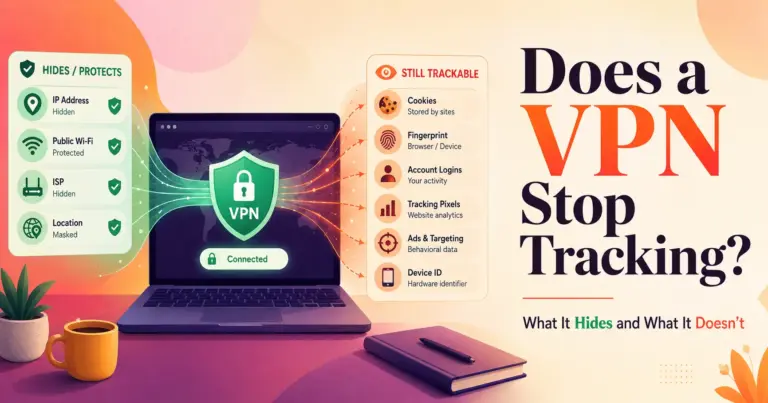
A VPN, or virtual private network, creates an encrypted tunnel between your device and a VPN server. To your local network, such as a coffee shop Wi-Fi router or home ISP, your traffic appears to go to the VPN provider instead of directly to every website you visit.
That can be useful. On public Wi-Fi, a VPN can reduce exposure to local network monitoring. At home, it can make it harder for your ISP to see the specific sites you access, especially when DNS requests and web traffic go through the VPN tunnel.
But a VPN does not make you anonymous by magic. The FTC’s guidance is blunt: a VPN generally does not make you entirely anonymous; it often shifts trust from your ISP or public Wi-Fi provider to the VPN provider. (Federal Trade Commission)
That trust shift is the part many VPN ads gloss over.
What a VPN can help with
A good VPN can help with:
- ISP visibility: Your ISP may see that you connected to a VPN, but not easily see every destination inside the VPN tunnel.
- Public Wi-Fi risk: Local network operators have less visibility into your browsing activity.
- IP masking: Websites usually see the VPN server’s IP address rather than your home IP address.
- Regional network exposure: A VPN may help when using unfamiliar hotel, airport, school, or shared networks.
- App-wide coverage: A system-level VPN can protect more than just one browser, depending on configuration.
This is why VPNs are popular with travelers, remote workers, journalists, privacy-conscious users, and people who often use public networks. Still, the value depends heavily on provider quality.
What a VPN does not solve
A VPN usually does not stop:
- Websites from tracking you after you log in.
- Ad networks from recognizing your browser or device.
- Cookies and tracking pixels from operating inside your browser.
- Browser fingerprinting based on device, screen, fonts, extensions, and settings.
- Malware, phishing, or scam pages unless the VPN includes extra filtering.
- A VPN provider from logging metadata if its policies and systems allow it.
This is where “VPN vs private browser” becomes more nuanced. A VPN changes the network path. A browser privacy tool changes what happens inside the browser.
If you log in to Google, Facebook, TikTok, Amazon, Reddit, or any other account while using a VPN, the site still knows it’s you. The VPN may hide your home IP address, but it doesn’t erase your account identity.
What a Private Browser Actually Means
The phrase private browser can mean two different things:
- Private browsing mode inside a normal browser, such as Chrome Incognito or Firefox Private Browsing.
- A privacy-focused or secure browser, such as Brave, Firefox with strict settings, DuckDuckGo Browser, Tor Browser, or other browsers designed to reduce tracking.
These are not the same.
Private browsing mode
Private browsing mode is mainly about local privacy. It helps prevent your browser from saving certain history, cookies, form entries, and session data after the private window closes.
Chrome says Incognito limits what is saved to your device and is useful on shared computers or when you don’t want a session saved locally. (Google Help) Mozilla similarly explains that private browsing is not a malware shield and is designed to reduce traces of activity on your own device. (Mozilla Support)
That means private browsing mode is useful when:
- You’re using a shared computer.
- You don’t want a shopping session saved.
- You want to sign into a second account temporarily.
- You don’t want local browser history stored.
- You want cookies cleared after closing the private session.
It is not the same as being anonymous online.
Secure browser or privacy-focused browser
A secure browser goes beyond local history. It may include:
- Tracker blocking.
- Cross-site cookie restrictions.
- Anti-fingerprinting protections.
- HTTPS-first behavior.
- Script blocking controls.
- Built-in ad blocking.
- Global Privacy Control.
- Safer default permissions.
- Isolation features for sites, cookies, or profiles.
Brave, for example, describes its Shields feature as blocking trackers, cross-site cookies, fingerprinting, phishing, and related web tracking mechanisms. (Brave) Firefox also offers enhanced tracking protections and private browsing behavior, although exact protection depends on browser settings, version, extensions, and user configuration.
A secure browser is usually better than private browsing mode if your goal is online tracking protection rather than just hiding history from someone else using your device.
VPN vs Private Browser: The Core Difference
A VPN protects the connection path. A private browser protects the browser environment.
Think of it like a delivery.
A VPN changes the road your package travels on. A secure browser changes what information is written on the package, who can place labels on it, and which third parties can inspect it while it’s being packed.
Both matter.
The VPN layer
A VPN sits closer to the network level. It deals with IP addresses, encrypted tunnels, VPN servers, DNS routing, and local network visibility.
Your ISP or Wi-Fi operator may no longer see the same direct website requests. Websites may see the VPN server’s IP instead of yours. But the browser can still leak identity through cookies, scripts, login sessions, fingerprinting, and behavior.
The browser layer
A private or secure browser sits closer to the web page. It handles cookies, cache, local storage, browser permissions, scripts, redirects, fingerprinting defenses, ad trackers, and third-party requests.
A secure browser can reduce cross-site tracking, but it doesn’t automatically stop your ISP from seeing unprotected network metadata unless DNS and traffic protections are also in place.
The practical takeaway
Use a VPN when the main threat is network observation.
Use a secure browser when the main threat is web tracking.
Use DNS filtering when the main threat is known unwanted or malicious domains.
Use encrypted DNS when the main issue is plain DNS visibility.
What DNS Filtering Does
DNS filtering works at the domain lookup level.
Before your browser loads a website, your device usually asks a DNS resolver to translate a domain name into an IP address. DNS filtering checks those domain requests against rules or threat intelligence lists. If a domain is known for malware, phishing, adult content, gambling, ads, trackers, or another blocked category, the resolver can block or redirect the request.
CISA describes protective DNS as part of risk reduction and active traffic filtering. (CISA) Quad9 describes its public DNS service as blocking lookups of malicious hostnames using threat data. (Quad9) NextDNS describes consumer-facing DNS filtering features for security threats, ads, trackers, and supervised browsing. (NextDNS)
DNS filtering is useful because it can work across many apps, not just one browser, depending on how it is configured. If you set DNS filtering at the router level, it can help protect multiple devices on a home network. If you set it on one phone or laptop, it mainly protects that device.
What DNS filtering is good at
DNS filtering is good for:
- Blocking known phishing domains.
- Blocking malware command-and-control domains.
- Blocking adult or gambling categories for family safety.
- Blocking some tracker and ad domains.
- Reducing accidental visits to known bad destinations.
- Applying simple network rules across multiple devices.
What DNS filtering is not good at
DNS filtering is weaker when:
- The unwanted content comes from the same domain as wanted content.
- A site serves ads, tracking, and useful content from the same hostname.
- Apps hardcode their own DNS or use encrypted DNS outside your filter.
- A malicious link uses a new domain not yet listed.
- The site uses an IP address directly instead of a domain.
- The user can change DNS settings unless controls are locked down.
This is why DNS filtering is not a complete replacement for a VPN or secure browser. It’s a useful control layer, not a privacy cure-all.
What Encrypted DNS Does
Encrypted DNS protects DNS queries from being read as plain text between your device and the DNS resolver.
The common technologies are:
- DNS over HTTPS, often called DoH.
- DNS over TLS, often called DoT.
- DNS over QUIC, used in some newer implementations.
The IETF’s RFC 8484 defines DNS over HTTPS as a way to send DNS queries and responses over HTTPS. (IETF Datatracker) In plain English, that means your DNS lookup is wrapped in encryption rather than being sent openly over the network.
That sounds powerful, and it is useful. But it has limits.
What encrypted DNS protects
Encrypted DNS can help prevent a local network, ISP, or Wi-Fi operator from easily reading your DNS requests in plain text.
For example, without encrypted DNS, a network may see that your device asked for examplebank.com, even if the website itself loads over HTTPS. With encrypted DNS, that specific DNS lookup is encrypted between your device and the resolver.
What encrypted DNS does not protect
Encrypted DNS does not automatically hide:
- Your IP address from websites.
- The fact that you connected to a website’s IP address.
- Tracking cookies.
- Browser fingerprints.
- Logged-in account identity.
- What a DNS resolver itself may log.
- All non-DNS traffic.
Encrypted DNS also shifts trust to the DNS resolver. That resolver may know what domains you request, unless the architecture is designed to separate identity and queries. Apple’s iCloud Private Relay, for example, uses a split-relay model where Apple says the first relay sees the user IP but not the destination name, while the second relay handles the destination without seeing the original IP. (Apple Support)
For most consumers, encrypted DNS is worth enabling, but it should be understood as a DNS privacy improvement, not a VPN replacement.
Side-by-Side Privacy Comparison
| Privacy Question | VPN | Private Browsing Mode | Secure Browser | DNS Filtering | Encrypted DNS |
|---|---|---|---|---|---|
| Hides browsing history from people using your device | Limited | Strong | Strong, depending on mode | No | No |
| Reduces ISP visibility | Strong | No | Limited | Limited | Moderate |
| Masks your IP from websites | Strong | No | No, unless relay/Tor/VPN included | No | No |
| Blocks trackers | Sometimes | Limited | Strong | Moderate | No |
| Blocks phishing/malware domains | Sometimes | No | Sometimes | Strong | No, unless paired with filtering |
| Protects all apps | Usually | No | No | Sometimes | Sometimes |
| Reduces browser fingerprinting | No | Limited | Moderate to strong | No | No |
| Helps on public Wi-Fi | Strong | Limited | Moderate | Moderate | Moderate |
| Requires provider trust | VPN provider | Browser vendor | Browser vendor | DNS provider | DNS provider |
| May break websites | Sometimes | Rarely | Sometimes | Sometimes | Rarely |
The key pattern is simple: VPNs protect transport visibility, secure browsers reduce tracking, DNS filtering blocks bad or unwanted domains, and encrypted DNS hides DNS queries from local observers.
Privacy Scenarios: Which Tool Should You Use?
Scenario 1: You use public Wi-Fi often
Use a VPN first.
Public Wi-Fi creates a network-trust problem. A VPN reduces what the local network operator can see and makes your traffic harder to inspect on that network. HTTPS already protects most modern web content, but a VPN still adds value by reducing local metadata visibility and routing traffic through a tunnel.
Add a secure browser for tracking protection. Add DNS filtering if you want malware and phishing domain blocking.
Best stack: VPN + secure browser + DNS filtering.
Scenario 2: You don’t want your browser history saved
Use private browsing mode.
This is exactly what private/incognito mode is designed for. It helps keep local history, cookies, and session data from persisting after the private window closes. Chrome frames Incognito around limiting what is saved to the device. (Google Help)
But don’t confuse this with network privacy. Your ISP, school, employer, or websites may still have visibility depending on the environment.
Best stack: Private browsing mode, plus secure browser settings if tracking is a concern.
Scenario 3: You want fewer ads following you around
Use a secure browser with tracker blocking.
Ad tracking often happens through cookies, pixels, scripts, fingerprinting, and cross-site identifiers. The FTC notes that websites and apps may track activity using cookies, pixels, device fingerprinting, and advertising identifiers. (Consumer Advice)
A VPN may change your IP address, but it won’t remove tracking cookies from your browser. A secure browser or tracker blocker is usually more relevant for this problem.
Best stack: Secure browser + tracker blocking + cookie controls + optional DNS filtering.
Scenario 4: You want to stop phishing and malware domains
Use DNS filtering and browser security features.
DNS filtering can block known malicious hostnames before the connection completes. CISA’s protective DNS material frames DNS filtering as a cybersecurity risk-reduction control. (CISA)
A secure browser also helps through warning pages, unsafe site detection, download warnings, and permission controls. A VPN alone is not enough unless it includes threat blocking.
Best stack: DNS filtering + secure browser + device security software.
Scenario 5: You want your ISP to see less
Use a VPN or encrypted DNS, depending on your goal.
Encrypted DNS can hide DNS queries from local observers, but your ISP may still see destination IP addresses and traffic patterns. A VPN generally gives broader network privacy because the ISP sees the VPN connection rather than each destination. Still, as the FTC notes, this shifts trust to the VPN provider. (Federal Trade Commission)
Best stack: Reputable VPN + secure DNS + secure browser.
Scenario 6: You want family-safe filtering
Use DNS filtering.
DNS filtering is often better than a VPN for household rules because it can block adult content, gambling sites, malware domains, or social media categories across devices. Router-level DNS filtering can be especially useful, though determined users may bypass it unless device controls are enforced.
Best stack: DNS filtering at router/device level + device parental controls.
Scenario 7: You want maximum anonymity
None of these tools alone is enough.
A VPN can hide your IP from websites, but the VPN provider becomes a trusted intermediary. A secure browser can reduce tracking, but logged-in accounts still identify you. DNS filtering can block domains, but it does not anonymize traffic. Private browsing mode mainly reduces local traces.
For high-anonymity browsing, Tor Browser is usually the more relevant category, though it comes with speed, usability, website compatibility, and risk-profile trade-offs.
Best stack: Threat-model-specific setup, usually not a normal consumer VPN/private browser bundle.
Common Misconceptions About VPNs and Private Browsers
Misconception 1: “Incognito makes me anonymous”
No. Incognito or private browsing mode mostly limits what is stored locally. It does not fully hide you from websites, networks, employers, schools, or your ISP. Browser vendor documentation makes this limitation clear. (Google Help)
Misconception 2: “A VPN stops all tracking”
No. A VPN can hide your IP address from websites and reduce ISP visibility, but browser tracking can still happen. If you log into an account, accept cookies, allow tracking scripts, or use a highly fingerprintable browser setup, the VPN is only solving one part of the problem.
Misconception 3: “DNS filtering is the same as a VPN”
No. DNS filtering blocks or filters domain lookups. It does not create a VPN tunnel or hide your IP address from websites. It is more like a domain-level gatekeeper.
Misconception 4: “Encrypted DNS means nobody can see what I do”
No. Encrypted DNS hides DNS queries from local plain-text observation, but it doesn’t hide everything. Your resolver may still process your queries, and other network signals may remain visible.
Misconception 5: “A secure browser can replace all privacy tools”
No. A secure browser can greatly reduce web tracking, but it usually doesn’t protect every app on your device. If your email app, shopping app, game, or social media app connects outside the browser, browser protections may not apply.
The Best Privacy Setup for Most Consumers
For most privacy-conscious consumers, the strongest practical setup is layered:
- Use a secure browser for daily browsing.
- Use a VPN on public Wi-Fi, travel networks, or when ISP visibility is a concern.
- Enable DNS filtering for malware, phishing, and unwanted-domain protection.
- Use encrypted DNS if your VPN or DNS provider supports it cleanly.
- Limit account-based tracking by logging out, using separate profiles, and reducing third-party cookies.
- Keep your device secure with OS updates, browser updates, and safe extension choices.
This setup works because each layer solves a different privacy problem.
A practical home setup
For a normal household:
- Router-level DNS filtering for malware and adult-content blocking.
- Secure browser on each device.
- VPN for laptops and phones when traveling.
- Password manager for account security.
- Separate browser profiles for work, shopping, banking, and casual browsing.
A practical privacy-focused setup
For a more privacy-focused user:
- Secure browser with strict tracker blocking.
- Reputable no-logs VPN with independent audits where available.
- Encrypted DNS from a privacy-focused resolver.
- Minimal browser extensions.
- Regular cookie clearing or containerized browsing.
- Separate emails/aliases for signups.
- No unnecessary social logins.
A practical beginner setup
For a beginner:
- Stop treating private mode as anonymity.
- Use a secure browser as the default browser.
- Use a reputable VPN on public Wi-Fi.
- Turn on DNS filtering if the provider makes it easy.
- Don’t install random “privacy” extensions.
That last point matters. Too many extensions can increase fingerprint uniqueness, collect data themselves, or weaken browser stability.
How to Choose a VPN
A VPN comparison should focus less on slogans and more on trust, implementation, and usability.
Look for:
| VPN Factor | Why It Matters |
|---|---|
| Clear logging policy | The VPN becomes a trusted intermediary. Ambiguous policies are a risk. |
| Independent audits | Audits don’t guarantee perfection, but they add accountability. |
| Kill switch | Helps prevent accidental exposure if the VPN disconnects. |
| DNS leak protection | Prevents DNS queries from bypassing the VPN tunnel. |
| Device support | Privacy tools only help where they’re actually installed. |
| Transparent ownership | Hidden ownership makes trust evaluation harder. |
| Jurisdiction and legal process | Affects how provider obligations may work. |
| Performance | A slow VPN gets turned off, which defeats the purpose. |
| No manipulative claims | “Total anonymity” claims should be treated carefully. |
The FTC’s warning about VPN trust is important here: using a VPN can move trust away from a local network and toward the VPN provider. (Federal Trade Commission) So the provider’s incentives, infrastructure, policies, and transparency matter.
How to Choose a Secure Browser
A secure browser should reduce tracking without making everyday browsing painful.
Look for:
- Strong default tracker blocking.
- Clear controls for cookies and site permissions.
- Anti-fingerprinting features.
- Safe extension ecosystem.
- Regular security updates.
- Good mobile support.
- Profile/container support if available.
- Clear privacy documentation.
- Good website compatibility.
Brave’s public documentation emphasizes built-in blocking for trackers, cross-site cookies, fingerprinting, and phishing through Shields. (Brave) Firefox, Safari, Edge, and Chrome also include privacy and security controls, but their defaults and business models differ.
The best browser is the one you’ll actually use with sane settings. A hardened browser that breaks half your websites may push you back to unsafe habits.
How to Choose DNS Filtering
DNS filtering is especially useful for families, small businesses, and users who want passive protection from known bad domains.
Look for:
| DNS Filtering Factor | Why It Matters |
|---|---|
| Threat intelligence quality | Determines how well malicious domains are blocked. |
| False positive handling | Bad blocking can break useful sites. |
| Category controls | Useful for family or workplace filtering. |
| Encrypted DNS support | Helps protect DNS queries in transit. |
| Device and router support | Determines how broadly filtering applies. |
| Logging controls | DNS logs can reveal browsing patterns. |
| Bypass resistance | Important for family or managed-device use. |
| Clear privacy policy | DNS providers can see requested domains. |
Quad9 positions itself around blocking malicious hostnames. (Quad9) NextDNS positions itself as customizable filtering for threats, ads, trackers, and supervised browsing. (NextDNS) CISA’s protective DNS framing is more enterprise and government oriented, but the concept is similar: reduce risk by filtering DNS traffic before harmful destinations are reached. (CISA)
Where Apple iCloud Private Relay Fits
Apple iCloud Private Relay is not exactly a normal VPN, private browser, or DNS filter. It uses a relay design intended to split knowledge between parties. Apple says the first relay can see the user’s IP address but not the requested website name, while the second relay handles the destination and temporary IP address without seeing the original IP. (Apple Support)
For many Apple users, Private Relay can improve Safari privacy with little effort. But it is not the same as a traditional VPN. It does not generally give the same location-selection model as a VPN, and it is designed around Apple’s ecosystem and Safari-related traffic rather than universal consumer VPN use.
Use it as a privacy enhancement, not as a full replacement for every privacy tool.
Common Problems and Troubleshooting
Problem: “My VPN is on, but ads still follow me”
That’s expected. Ads may follow you through cookies, account logins, fingerprinting, and tracking pixels. Use a secure browser, clear site data, block third-party cookies, and reduce logged-in browsing.
Problem: “Private browsing still shows my location”
Private browsing mode does not hide your IP address. Websites can still infer location from IP address, GPS permissions, Wi-Fi data, account settings, or browser permissions.
Problem: “DNS filtering broke a website”
DNS filtering may block a domain that a site needs for login, payment, video, analytics, or content delivery. Check logs, allowlist the needed domain, or use a less aggressive blocklist.
Problem: “Encrypted DNS is enabled, but my ISP still knows I’m online”
Encrypted DNS hides DNS queries, not all traffic metadata. Your ISP still carries your internet connection and may see IP-level connections unless you use a VPN or similar relay.
Problem: “A secure browser breaks pages”
Strict blocking can break login flows, embedded videos, payment pages, maps, comment systems, or customer support widgets. Use per-site exceptions instead of disabling privacy protections everywhere.
Problem: “My VPN slows everything down”
VPNs add routing and encryption overhead. Try a closer server, a modern protocol, split tunneling for low-risk apps, or a more reliable provider. If the VPN is too slow, users tend to disable it, which weakens the whole setup.
Final Recommendation Inside the Article
For most consumers comparing VPN vs private browser, the answer is not either/or.
Use a secure browser as your daily privacy baseline. Use a VPN when network privacy matters, especially on public Wi-Fi or when you don’t want your ISP seeing destination patterns. Add DNS filtering for malicious-domain blocking, family controls, and tracker-domain reduction. Enable encrypted DNS when it fits cleanly into your setup.
A private browsing window is useful, but it is not enough by itself. A VPN is useful, but it is not enough by itself. DNS filtering is useful, but it is not enough by itself.
Real privacy comes from matching the tool to the threat.
9. FAQ Section
Is a VPN better than a private browser?
A VPN is better for network privacy, such as hiding your browsing destinations from a public Wi-Fi operator or reducing ISP visibility. A private or secure browser is better for browser-level tracking, such as cookies, trackers, fingerprinting, and local browsing history. They solve different problems.
Does private browsing hide my activity from my ISP?
No. Private browsing mainly limits what is saved on your device. It does not fully hide your activity from your ISP, employer, school, or the websites you visit. Browser documentation from Google and Mozilla makes this limitation clear. (Google Help)
Does a VPN stop online tracking?
A VPN can mask your IP address and reduce network-level visibility, but it does not stop all online tracking. Websites can still use cookies, account logins, tracking pixels, and device fingerprinting. The FTC notes that websites and apps may use cookies, pixels, device fingerprinting, and advertising identifiers to track users. (Consumer Advice)
What is DNS filtering?
DNS filtering blocks or filters domain lookups before your device connects to certain sites. It can block known malware, phishing, adult content, gambling, ads, trackers, or other categories, depending on the service and settings.
Is encrypted DNS the same as a VPN?
No. Encrypted DNS protects DNS queries between your device and resolver, while a VPN routes broader traffic through an encrypted tunnel. DNS over HTTPS is defined as a way to send DNS queries and responses over HTTPS, but it does not provide full VPN-like IP masking. (IETF Datatracker)
Should I use DNS filtering with a VPN?
Yes, in many cases. Some VPNs include DNS filtering or threat blocking. If yours doesn’t, you can use a trusted DNS filtering service, although setup depends on the VPN, operating system, and router. Be careful to avoid DNS leaks or conflicting DNS settings.
Is a secure browser enough for privacy?
A secure browser is a strong baseline, but it is not enough for every privacy need. It can reduce web tracking, but it usually does not protect every app on your device or fully hide network-level metadata.
What is the best privacy setup for everyday users?
A good everyday setup is a secure browser, reputable VPN for untrusted networks, DNS filtering for malicious domains, encrypted DNS where appropriate, and disciplined account/cookie habits. This layered approach is more realistic than relying on one tool.
10. Conclusion
The debate around VPN vs private browser often gets framed as a simple product choice. It isn’t. A VPN, private browser, DNS filtering service, and encrypted DNS resolver each protect a different layer of online activity.
A VPN is mainly about the network path. A secure browser is mainly about tracking protection. Private browsing mode is mainly about local traces. DNS filtering is mainly about blocking unwanted or dangerous domains. Encrypted DNS is mainly about protecting DNS queries in transit.
The strongest privacy posture is layered, practical, and honest about limits. Choose the tool based on the privacy problem you actually have, not the marketing phrase that sounds safest.