Best iPhone Privacy Settings for Less Tracking: A Practical Guide
Best iPhone Privacy Settings for Less Tracking
Many people buy an iPhone because Apple has a stronger privacy reputation than many competitors. However, owning an iPhone does not automatically eliminate tracking.
Apps, advertisers, websites, analytics providers, and online services can still collect information about your activity. The good news is that iPhone privacy settings provide meaningful controls that can significantly reduce unnecessary data collection when configured properly.
This guide explains which settings matter most, why they matter, and how to create a practical privacy setup that balances convenience with protection.
Why iPhone Privacy Settings Matter
Privacy is not only about hiding information. It is about controlling who can access information about you, how long they can keep it, and how it can be used.
Modern smartphones contain:
- Location history
- Contact information
- Browsing activity
- Photos and videos
- Search behavior
- Device identifiers
- Financial and shopping activity
Even seemingly harmless information can be combined to build detailed profiles for advertising, analytics, personalization, or other purposes.
The goal is not necessarily complete anonymity. For most users, the goal is reducing unnecessary collection while maintaining a smooth user experience.
Understanding Tracking on iPhone
What Tracking Actually Means
Tracking refers to collecting data about your behavior across apps, websites, devices, or services.
Examples include:
- Recording which products you view
- Measuring ad performance
- Tracking location patterns
- Building advertising profiles
- Linking activity across multiple apps
What Apple Can Prevent
Apple’s privacy controls help reduce:
- Cross-app tracking
- Excessive location access
- Certain advertising identifiers
- Website tracking techniques
- Unnecessary permissions
What Apple Cannot Fully Prevent
No smartphone can eliminate:
- Data you voluntarily provide
- Tracking inside a service you actively use
- Information required for account functionality
- Data collected by websites you interact with
Privacy settings reduce exposure. They do not create complete invisibility.
The Most Important Privacy Settings to Change First
If you only have ten minutes, start with these settings.
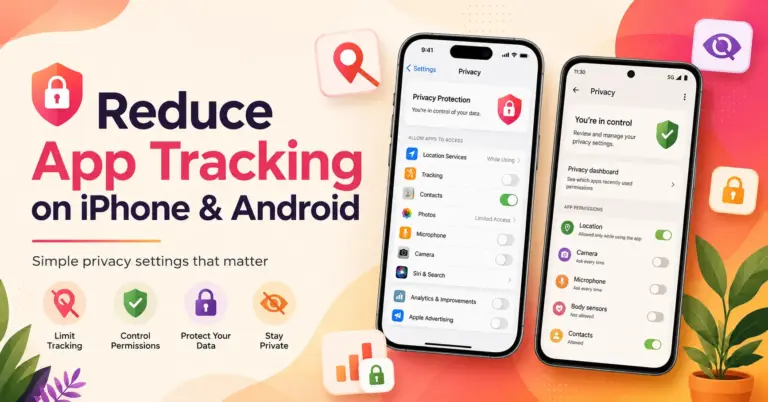
1. Disable Unnecessary App Tracking
Navigate to:
Settings → Privacy & Security → Tracking
Turn off:
“Allow Apps to Request to Track”
This is one of the most impactful privacy changes available.
App Tracking Transparency limits the ability of apps to track activity across other apps and websites for advertising purposes.
Why It Matters
Without permission, many advertising networks lose access to important tracking signals used to build behavioral profiles.
Trade-Off
You may still see ads. They simply become less personalized.
2. Review Location Services
Navigate to:
Settings → Privacy & Security → Location Services
Many apps request location access even when it is not essential.
For each app choose:
- Never
- Ask Next Time
- While Using the App
Avoid “Always” unless genuinely necessary.
Examples that may need location:
- Navigation apps
- Weather apps
- Ride-sharing apps
Examples that often do not:
- Casual games
- Photo editors
- Flashlight apps
3. Disable Unnecessary Analytics Sharing
Navigate to:
Settings → Privacy & Security → Analytics & Improvements
Review options such as:
- Share iPhone Analytics
- Share iCloud Analytics
- Improve Siri & Dictation
Many privacy-conscious users disable these options to reduce diagnostic data sharing.
4. Limit Personalized Advertising
Navigate to:
Settings → Privacy & Security → Apple Advertising
Disable personalized advertising if you prefer less advertising-based profiling.
Location Privacy on iPhone
Location data is among the most sensitive information stored on a smartphone.
Precise Location vs Approximate Location
Many apps function perfectly with approximate location.
Examples:
- Weather forecasts
- Local news
- Nearby recommendations
Approximate location reduces precision while preserving functionality.
When Precise Location Makes Sense
Useful for:
- Turn-by-turn navigation
- Emergency assistance
- Ride-sharing services
- Delivery tracking
For everything else, approximate location is often sufficient.
Review System Services
Navigate to:
Settings → Privacy & Security → Location Services → System Services
Review features carefully.
Common options include:
- Significant Locations
- Location-Based Apple Ads
- Device Analytics
Not every feature needs location access.
Safari Privacy Settings
Safari includes several privacy protections that many users never enable or review.
Prevent Cross-Site Tracking
Navigate to:
Settings → Safari
Enable:
“Prevent Cross-Site Tracking”
This helps limit advertisers from following browsing behavior across multiple websites.
Hide IP Address
Safari can limit visibility of your IP address to trackers and websites depending on your configuration.
This reduces passive tracking opportunities.
Privacy Report
Safari provides visibility into blocked trackers.
Reviewing these reports helps users understand how frequently websites attempt tracking.
Private Browsing
Private browsing reduces local browsing history retention.
However, it does not make users anonymous online.
This distinction is frequently misunderstood.
iCloud Private Relay
Private Relay helps obscure IP address information while browsing in Safari.
Benefits include:
- Reduced network visibility
- Additional privacy protection
- Improved resistance to some tracking methods
Limitations include:
- Not available in all situations
- Not identical to a full VPN service
Conducting an App Permissions Audit
Permissions deserve regular review because apps accumulate access over time.
Camera Permissions
Ask:
- Does this app genuinely need camera access?
- Is camera access still necessary?
Remove permissions that no longer serve a purpose.
Microphone Permissions
Voice recording apps require microphone access.
Many others do not.
Review periodically.
Photos Access
Modern iOS versions allow:
- Full access
- Selected photos only
Whenever possible, use selected-photo access.
Contacts Permissions
Contacts are highly sensitive.
Only messaging, communication, or collaboration apps typically require access.
Bluetooth Permissions
Bluetooth access can reveal nearby devices and support various tracking mechanisms.
Disable where unnecessary.
Apple ID Privacy Protections
Your Apple ID is central to your privacy and security.
Enable Two-Factor Authentication
Two-factor authentication provides substantial protection against account compromise.
Even strong passwords can be stolen.
A second verification factor significantly reduces risk.
Review Trusted Devices
Periodically verify:
- Active devices
- Sign-in history
- Recovery methods
Remove devices you no longer use.
Family Privacy Recommendations
Families face unique privacy challenges.
Children’s Devices
Parents should:
- Review permissions regularly
- Limit unnecessary app installations
- Discuss privacy practices
- Use parental controls appropriately
Shared Devices
Avoid:
- Shared Apple IDs
- Shared passwords
- Permanent location sharing without review
Each family member should ideally maintain separate accounts.
Privacy Trade-Offs and Limitations
Privacy improvements often involve compromises.
| Privacy Setting | Benefit | Possible Trade-Off |
|---|---|---|
| Tracking disabled | Less profiling | Less personalized ads |
| Location restrictions | Less location exposure | Reduced convenience |
| Analytics disabled | Less data sharing | Less diagnostic feedback |
| Strict permissions | Lower risk | Additional prompts |
The best setup depends on personal priorities.
Monthly Privacy Maintenance Checklist
Once per month:
- Review installed apps
- Remove unused applications
- Audit permissions
- Review location access
- Check tracking settings
- Update iOS
- Review account security
- Verify connected devices
Privacy is most effective when maintained continuously.
Common Mistakes to Avoid
Assuming Apple Blocks All Tracking
Apple provides tools, not guarantees.
Users must actively configure privacy settings.
Granting Permissions Automatically
Permission fatigue causes many users to click “Allow” without consideration.
Pause and evaluate each request.
Ignoring Browser Privacy
Browser settings matter as much as device settings.
Keeping Unused Apps Installed
Old applications often retain permissions and account access.
Remove what you no longer use.
Forgetting Family Devices
One poorly configured device can expose more information than expected.
Advanced Privacy Enhancements
Users seeking additional privacy can consider layered protections.
Use a Password Manager
Benefits include:
- Unique passwords
- Reduced credential reuse
- Improved account security
Enable Advanced Authentication
Whenever available:
- Passkeys
- Multi-factor authentication
- Security keys
Consider Privacy-Focused Services
Examples may include:
- VPN services
- Encrypted cloud storage
- Secure email providers
Evaluate providers carefully and review privacy policies before subscribing.
Reduce Data Sharing Across Services
Ask:
- Does this account need social sign-in?
- Does this app need access to contacts?
- Does this website need location access?
Data minimization remains one of the most effective privacy strategies.
Building a Sustainable Privacy System
The strongest privacy strategy is not based on a single setting.
Instead, combine:
- App Tracking Transparency
- Location controls
- Permission management
- Safari protections
- Account security
- Ongoing maintenance
Each layer reduces available tracking signals and improves overall privacy resilience.
Users who review permissions regularly, limit unnecessary access, and understand how tracking works typically achieve substantially better privacy outcomes than those who rely solely on default settings.
9. FAQ Section
Which iPhone privacy setting should I change first?
Disable app tracking requests through App Tracking Transparency and review location permissions. These usually provide the biggest immediate privacy improvement.
Does turning off tracking stop all ads?
No. Ads will still appear. The difference is that advertisers have fewer signals for personalization.
Is Safari more private than other browsers on iPhone?
Safari includes strong privacy protections integrated with iOS, including cross-site tracking prevention and Privacy Reports. However, privacy depends on overall browsing habits as well.
Should I disable Precise Location?
For many apps, yes. Approximate location often provides enough functionality while reducing location exposure.
Does Private Browsing make me anonymous?
No. Private Browsing mainly limits local history storage. Websites, internet providers, and online services may still see activity.
How often should I review app permissions?
A monthly review is a practical schedule for most users.
Is iCloud Private Relay the same as a VPN?
No. Both improve privacy, but they operate differently and serve different purposes.
Can family members use the same Apple ID?
It is generally better for each person to have a separate Apple ID and use family-sharing features when appropriate.
10. Conclusion
The best iPhone privacy settings are not about achieving perfect anonymity. They are about reducing unnecessary data collection while maintaining a practical user experience.
Start with App Tracking Transparency, location controls, Safari privacy settings, and permission audits. Then strengthen account security with two-factor authentication and regular privacy reviews.
A privacy-conscious iPhone setup is most effective when viewed as an ongoing process rather than a one-time configuration. Small improvements across multiple settings often provide more meaningful protection than any single feature alone.