How to Reduce App Tracking on iPhone and Android
Reduce App Tracking on iPhone and Android
App tracking can feel invisible. You install a weather app, tap through a few permission prompts, and move on. Later, you wonder why ads seem oddly specific, why a random app wants your location, or why your child’s game needs access to contacts.
The good news: you don’t have to become a cybersecurity expert to reduce app tracking. Most people can make a serious improvement by changing a few phone settings, removing unnecessary permissions, checking app privacy labels, and being more selective about which apps stay installed.
The key word is reduce. You usually can’t stop every data flow on a modern smartphone. Some tracking is tied to account services, app analytics, advertising systems, crash reporting, cloud sync, fraud prevention, and basic app functionality. But you can cut down the most unnecessary tracking, especially around location, advertising identifiers, background access, contacts, photos, camera, and microphone.
Apple’s iPhone privacy controls include App Tracking Transparency, Location Services, Precise Location, App Privacy Report, and App Store privacy labels. Apple says users can go to Settings > Privacy & Security > Tracking to manage which apps have requested tracking permission and can turn off “Allow Apps to Request to Track.” (Apple Support) Android users can manage app permissions through Android’s Permission Manager and review recent access through Privacy Dashboard; Google says Privacy Dashboard shows which apps accessed data, which permissions they used, and when access happened. (Google Help)
That gives us a practical starting point: don’t only look for one “tracking” switch. Treat mobile privacy as a layered cleanup.
Quick Answer: The Best Way to Reduce App Tracking
To reduce app tracking on iPhone and Android, start with these steps:
| Step | iPhone | Android |
|---|---|---|
| Stop cross-app ad tracking | Settings > Privacy & Security > Tracking | Settings path varies; review ad privacy/ad ID controls |
| Limit location tracking | Privacy & Security > Location Services | Security & privacy > Privacy > Permission Manager > Location |
| Review app permissions | Privacy & Security | Permission Manager |
| Check recent access | App Privacy Report | Privacy Dashboard |
| Review app disclosures | App Store privacy labels | Google Play Data safety |
| Reduce account-level tracking | Apple ID/iCloud settings where relevant | Google Account > Data & privacy |
| Remove risky apps | Delete apps you don’t use | Uninstall or disable apps you don’t trust |
The best privacy gains usually come from three actions:
- Limit location access
- Remove permissions apps don’t need
- Delete apps you no longer use
A privacy setting can restrict an app. Uninstalling removes the app from the device entirely. That’s why an app cleanup often does more than toggling every possible switch.
What App Tracking Actually Means
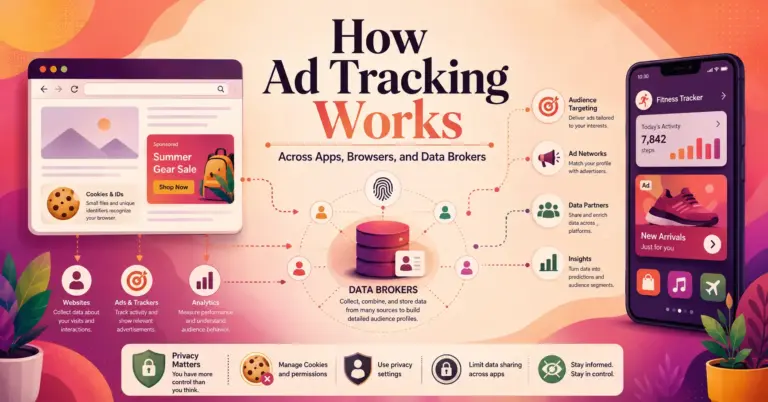
App tracking is the collection or sharing of information about your activity across apps, websites, devices, or services, often for advertising, analytics, personalization, attribution, or profiling.
In plain English, it can include things like:
- An app using an advertising identifier to recognize your device.
- A shopping app sharing event data with ad platforms.
- A weather app accessing your location in the background.
- A game using analytics SDKs to measure behavior.
- A social app linking your activity to your profile.
- A data broker receiving location or device data from app-based systems.
Not all tracking is equally harmful. Some analytics help developers fix bugs or understand which features people use. Fraud detection can protect accounts. Location access can make maps, delivery, ride-hailing, and weather apps work properly.
The problem starts when data collection becomes excessive, unclear, or unrelated to what the app actually needs.
A flashlight app does not need your contacts. A calculator does not need your precise location. A children’s game probably does not need broad tracking permissions. A weather app may need approximate location, but it usually does not need continuous precise background tracking.
Why App Tracking Happens
Apps track users for several reasons.
Advertising
Free apps often make money through ads. Advertisers may want to know whether someone viewed an ad, clicked it, installed an app, bought something, or belongs to a certain interest group. That can involve advertising IDs, analytics events, location signals, and third-party SDKs.
Analytics
Developers use analytics to understand crashes, feature usage, session length, screen flow, retention, and user behavior. Some analytics are low-risk. Others collect more detail than users expect.
Personalization
Apps may use your behavior to recommend content, products, routes, music, videos, posts, or offers. This can improve convenience, but it can also build a detailed profile.
Location-based services
Maps, rideshare, delivery, weather, fitness, travel, dating, family safety, and local marketplace apps often rely on location. The privacy question is whether they need precise, continuous, or background access.
Data sharing and data brokerage
Some app data may be shared with third parties for advertising, analytics, measurement, or commercial use. The FTC advises users to check smartphone privacy settings and consider turning off unnecessary permissions or deleting apps that request too much access for their function. (Consumer Advice)
App Tracking vs App Permissions: The Important Difference
Many users mix up tracking and permissions. They overlap, but they are not the same.
| Concept | What It Controls | Example |
|---|---|---|
| App tracking | Whether an app may track activity across other companies’ apps and websites, usually for advertising or data sharing | A shopping app asking to track activity across apps |
| App permissions | Whether an app can access device data or hardware | Location, camera, microphone, contacts, photos |
| Account activity | What your Apple, Google, or app account saves | Search history, app activity, location history, watch history |
| App disclosures | What the developer says it collects or shares | App Store privacy labels, Google Play Data safety |
| Network activity | Domains and services an app contacts | Analytics, ad networks, APIs, crash-reporting services |
You can deny app tracking and still grant location. You can block location and still allow an app to use analytics. You can delete your advertising ID and still have account-level activity saved by a signed-in service.
That’s why the most effective approach is not one setting. It’s a privacy review.
How to Reduce App Tracking on iPhone
iPhone has strong privacy controls, but many users never review them after setup. That’s a mistake. Apps often request permissions over time, and an app you trusted two years ago may no longer deserve the same access today.
Turn Off App Tracking Requests
On iPhone, go to:
Settings > Privacy & Security > Tracking
From there, you can review apps that requested tracking permission and turn permission on or off for individual apps. Apple also allows you to turn off Allow Apps to Request to Track, which stops apps from asking for tracking permission. (Apple Support)
A good default for most users:
- Turn off tracking for apps that don’t clearly need it.
- Turn off tracking for games, shopping apps, social apps, and free utility apps unless you have a specific reason.
- Consider turning off “Allow Apps to Request to Track” if you prefer fewer prompts.
Apple says that when an app asks to track your activity, you can choose Allow or Ask App Not to Track, and you can still use the app’s full capabilities regardless of the choice. (Apple Support)
Still, be realistic. This setting focuses on a particular kind of tracking across other companies’ apps and websites. It does not mean the app collects no data at all.
Review Location Services
Go to:
Settings > Privacy & Security > Location Services
Look through every app. For each one, ask: “Does this app need my location to do its job?”
Use this simple rule:
| App Type | Recommended Location Access |
|---|---|
| Maps/navigation | While Using, often Precise Location on |
| Weather | While Using, Precise Location often off |
| Rideshare/delivery | While Using; enable precise only when needed |
| Camera | Location off unless you want geotagged photos |
| Social media | Usually off or While Using |
| Games | Usually off |
| Shopping apps | Usually off |
| Banking apps | Usually off or While Using if fraud/location feature is needed |
| Family safety apps | Depends on family use case; review carefully |
Apple notes that turning off Location Services can limit important iPhone and third-party app features, so the goal is not always to disable location globally. The better approach is to control location app by app. (Apple Support)
Turn Off Precise Location When It’s Not Needed
Precise Location is one of the most important mobile privacy settings. Many apps only need a rough location.
On iPhone:
Settings > Privacy & Security > Location Services > Select an app > Precise Location
Apple says users can turn Precise Location on or off for individual apps, and approximate location may be enough for apps that do not need exact location. (Apple Support)
Good candidates for approximate location:
- Weather apps
- Local news apps
- Store apps
- Coupon apps
- Some search apps
- General content apps
Apps that may need precise location:
- Turn-by-turn navigation
- Rideshare pickup
- Food delivery address matching
- Emergency or safety apps
- Fitness route tracking
Even then, “While Using” is usually safer than “Always.”
Check App Privacy Report
iPhone’s App Privacy Report helps show how apps use granted permissions and what network domains they contact. Apple says App Privacy Report provides visibility into how apps use permissions and their network activity. (Apple Support)
Go to:
Settings > Privacy & Security > App Privacy Report
Use it to look for red flags:
- A simple app accessing location repeatedly.
- A game contacting many third-party domains.
- An app using the microphone or camera unexpectedly.
- Apps accessing contacts, photos, or location when you barely use them.
This is especially useful for parents. If a child’s game or editing app is touching sensitive data, you can remove the permission or uninstall the app.
Review App Store Privacy Labels Before Installing
Before installing an app, scroll to the App Store’s privacy section. Apple says the App Privacy section explains data types an app may collect, including location, contact info, health info, and how developers or third-party partners may use that data, such as advertising or analytics. (Apple Support)
Look for:
- Data used to track you
- Location data
- Contact information
- User content
- Browsing history
- Search history
- Identifiers
- Purchases
- Diagnostics
A privacy label is not a perfect guarantee, but it helps you compare apps before you install them.
For example, if two scanner apps do the same job and one collects location, contacts, identifiers, and usage data while the other collects less, choose the lower-data option.
Restrict Photos, Contacts, Camera, and Microphone Access
A lot of tracking risk comes from permissions people approve once and forget.
Review:
Settings > Privacy & Security
Then check:
- Location Services
- Contacts
- Calendars
- Photos
- Camera
- Microphone
- Bluetooth
- Local Network
- Health
- Motion & Fitness
For Photos, avoid giving full library access when selected photo access is enough. For Contacts, be strict. Contact lists can expose other people, not just you.
A social app may ask for contacts to “find friends.” That sounds harmless, but it can upload or process your address book. A photo editor may ask for your whole photo library when it only needs the image you’re editing. A voice note app needs microphone access while recording, not all the time.
Use “Ask Next Time” or Limited Access Where Available
When iPhone offers limited or temporary permission choices, use them.
Better choices often include:
- Selected Photos instead of All Photos
- While Using instead of Always
- Ask Next Time instead of permanent access
- Approximate location instead of precise location
These settings are especially useful for apps you use occasionally.
Remove Apps You Don’t Use
Settings can limit tracking, but uninstalling unused apps is cleaner.
Remove:
- Old games
- One-time event apps
- Expired school apps
- Shopping apps you installed for one purchase
- Random photo filters
- Free utility apps with heavy data collection
- Apps you don’t recognize
If you haven’t used an app in months, it probably doesn’t need to stay on your phone.
How to Reduce App Tracking on Android
Android privacy settings vary by manufacturer and Android version, but the core controls are similar. Pixel, Samsung, OnePlus, Motorola, and Xiaomi may use slightly different labels, so search inside Settings if the exact path differs.
Review Permission Manager
On Android, start with:
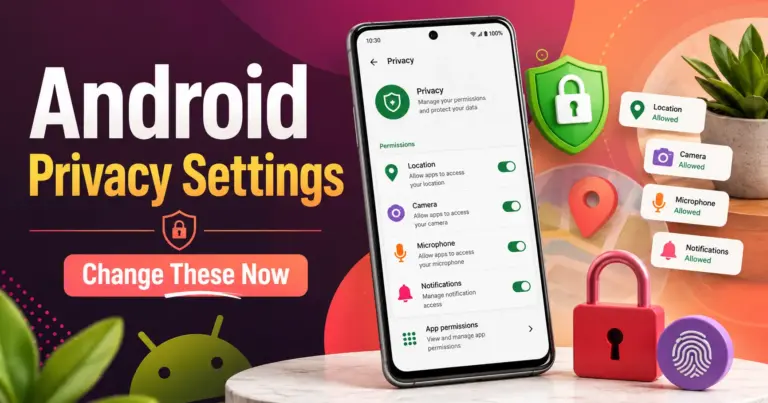
Settings > Security & privacy > Privacy > Permission Manager
Google’s Android help says users can open Permission Manager, tap a permission type, see which apps are allowed or denied, and change an app’s permission settings. (Google Help)
Review these permissions first:
- Location
- Camera
- Microphone
- Contacts
- Photos and videos
- Calendar
- Nearby devices
- Bluetooth
- Phone
- SMS
- Files
- Health-related permissions, where available
Use a strict rule: if the app does not need the permission for its core function, deny it.
Use Android Privacy Dashboard
Android Privacy Dashboard is useful because it shows recent permission access, not just permission status. Google says Privacy Dashboard lets users see which apps are accessing data, which permissions apps are using, and when access happens. (Google Help)
Go to:
Settings > Security & privacy > Privacy > Privacy Dashboard
Look for:
- Location access while you were not using the app
- Camera access from apps that should not need it
- Microphone access at unexpected times
- Contacts access from games or shopping apps
- Frequent background access
This is where odd behavior becomes visible.
Limit Location Access
For each app with location permission, choose the least invasive option that still works.
Common Android location options include:
- Allow all the time
- Allow only while using the app
- Ask every time
- Don’t allow
- Use precise location toggle, where available
Recommended defaults:
| App Type | Android Location Setting |
|---|---|
| Maps | While using; precise on when navigating |
| Weather | While using or approximate |
| Rideshare | While using; precise when booking |
| Social media | Deny or while using |
| Games | Deny |
| Shopping | Deny unless store pickup/location feature is needed |
| Camera | Deny unless you want photo geotags |
| Family safety | Allow all the time only if needed and understood |
The biggest risk is background location. Very few apps truly need location all the time.
Reset or Limit Your Advertising ID
Android uses an advertising ID for ad-related use cases. Google’s Android developer documentation describes the Advertising ID as user-resettable and says the related settings screen lets users reset the advertising ID and opt out of ad personalization. (Android Developers)
The exact path can vary, but look for:
Settings > Privacy > Ads
or
Settings > Security & privacy > More privacy settings > Ads
Depending on your Android version and device, you may see options to:
- Reset advertising ID
- Delete advertising ID
- Opt out of ad personalization
- Manage ad privacy topics or measurement
Use these if you want fewer personalized ads and less persistent ad profiling. This does not block every ad, and it does not stop every app from collecting data, but it reduces one important tracking signal.
Google also tells developers to respect the user’s intention when the advertising ID is reset and not bridge resets by using another identifier without consent. (Android Developers)
Review Google Account Activity Controls
Android privacy is not only device permissions. Your Google Account can also save activity from apps and services.
Review:
Settings > Google > Manage your Google Account > Data & privacy
Pay attention to:
- Web & App Activity
- Location History or Timeline
- YouTube History
- Personalized ads or ad settings
- My Activity
- Auto-delete settings
Google says Web & App Activity can be turned on or off under Google Account data and privacy settings. (Google Help) Google also says My Activity lets users view, filter, manually delete, or automatically delete activity, including auto-delete options such as 3, 18, or 36 months. (Google Help)
This matters because even if you restrict an app permission, account-level history may still save activity from Google services.
Check Google Play Data Safety Before Installing Apps
Before installing an Android app, open its Google Play listing and read the Data safety section.
Google says the Data safety section lets developers describe how their apps collect, share, and handle different types of data. (Google Help) Google also states developers are responsible for completing a clear and accurate Data safety section for every app, and that the section should be consistent with the app’s privacy policy where relevant. (Google Help)
Look for:
- Data shared with third parties
- Location collection
- Financial info
- Contacts
- Photos and videos
- Device or other IDs
- App activity
- Data deletion options
- Whether data is encrypted in transit
Again, don’t treat labels as perfect. Treat them as a screening tool.
Watch Camera and Microphone Indicators
Modern Android versions show indicators when apps use the camera or microphone. Google says a green indicator appears at the top right when apps use the camera or microphone, and users can tap it to check which app or service is using them and manage permissions. (Google Help)
If you see the indicator when you are not expecting camera or microphone use, investigate immediately.
Possible explanations:
- You’re in a call or recording.
- A social app is open with camera preview.
- A voice assistant is active.
- An app has unnecessary permission.
- A malicious or poorly designed app is misusing access.
Don’t panic, but don’t ignore it.
Which App Permissions Should You Be Careful With?
Not every permission carries the same privacy risk.
| Permission | Why It Matters | Safer Default |
|---|---|---|
| Location | Reveals routines, home/work area, travel, sensitive visits | While Using or Ask Every Time |
| Precise Location | Reveals exact position instead of general area | Off unless needed |
| Contacts | Exposes your network and other people’s data | Deny unless essential |
| Photos | May expose personal documents, screenshots, family images | Selected access |
| Camera | Can capture visual surroundings | Allow only when needed |
| Microphone | Can capture voice/audio | Allow only when needed |
| Calendar | Reveals schedule, meetings, habits | Deny unless essential |
| Bluetooth/Nearby devices | Can support proximity and device detection | Deny unless needed |
| SMS/Phone | Highly sensitive; risk for account codes and call data | Deny except trusted core apps |
| Health/Fitness | Sensitive body, activity, and wellness data | Strictly limit |
Location Is Usually the Biggest Everyday Risk
Location data can reveal more than people expect. It may indicate where someone lives, works, studies, worships, receives care, shops, protests, dates, or travels.
For most users, the safest balance is:
- Keep location on for the phone.
- Restrict location per app.
- Use approximate location where possible.
- Avoid “Always” unless the app’s purpose truly depends on it.
- Delete apps that request location without a clear reason.
Contacts Deserve More Attention
Contacts permission is often underestimated. When an app accesses your contacts, it may process names, phone numbers, emails, and relationship signals. That affects people who never installed the app.
Be especially careful with:
- Social apps
- Messaging alternatives
- Caller ID apps
- Shopping apps
- Games
- “Find friends” features
Use manual search instead of contact syncing where possible.
Photos Can Contain Sensitive Data
Your photo library may contain:
- Children’s photos
- IDs
- Receipts
- Medical documents
- Screenshots of addresses
- Travel documents
- School information
- Work content
Use selected photo access whenever possible.
Best Privacy Settings for Parents
Parents have a different problem. They are not just protecting their own data. They are managing a child’s device habits, app installs, game permissions, social exposure, location sharing, and ad targeting.
Parent Privacy Checklist
| Area | What to Do |
|---|---|
| App installs | Require approval before new apps |
| Games | Check permissions and ad practices |
| Location | Avoid Always unless needed for safety |
| Photos | Limit full library access |
| Contacts | Usually deny |
| Social apps | Review privacy, messaging, visibility, and tracking |
| Browser | Use safer search and content settings |
| Screen time | Combine time limits with permission reviews |
| School apps | Check whether permissions match the school purpose |
Don’t Rely Only on Parental Controls
Parental controls are useful, but they don’t automatically make every app private. A child’s game can still request permissions. A social app can still encourage sharing. A free editing app can still collect usage data.
For children, the safer workflow is:
- Approve apps before installation.
- Review the app store privacy section.
- Install only if the app is necessary or clearly low-risk.
- Deny unnecessary permissions.
- Recheck permissions monthly.
- Remove apps after school projects, events, or short-term use.
Teach the “Why”
Children and teens are more likely to cooperate when they understand the reason.
Simple explanation:
“Some apps ask for more information than they need. We’re not blocking everything. We’re just making sure a game doesn’t get your location, contacts, photos, or microphone unless there’s a real reason.”
That’s clearer than saying, “Because I said so.”
What Deleting Apps Can Do That Settings Cannot
Privacy settings reduce access. Deleting apps removes the app from your phone.
Uninstalling can help when:
- You no longer use the app.
- The app has too many permissions.
- You don’t trust the developer.
- The app is full of ads and trackers.
- You found a better alternative.
- The app keeps requesting access after you deny it.
- The app has no clear privacy policy or weak disclosures.
A good monthly rule: if you don’t recognize an app or can’t explain why it’s installed, remove it.
For paid apps or subscriptions, check subscription status before deleting so you don’t keep paying for something you no longer use.
Do VPNs Stop App Tracking?
A VPN can hide some network-level information from your internet provider or local Wi-Fi network, and it can change the IP address visible to some services. But a VPN does not automatically stop app tracking.
A VPN usually does not stop:
- Apps from collecting data inside the app
- Apps from using your account login
- Apps from accessing granted permissions
- In-app analytics
- Advertising ID usage
- Location permission access
- Data you voluntarily provide
- Device fingerprinting techniques
- Social platform tracking inside their own apps
A VPN can be useful, especially on public Wi-Fi, but it is not a complete mobile privacy solution.
For app tracking, permissions and app choices matter more.
Mobile Privacy Workflow: A 30-Minute Cleanup
Here’s a practical workflow for normal users.
Step 1: Delete Apps You Don’t Use
Start with the home screen and app list. Remove old, unused, duplicate, or suspicious apps.
Focus on:
- Games you no longer play
- Old shopping apps
- Event apps
- Apps installed for one task
- Duplicate scanners, editors, and utilities
- Unknown apps
This step alone can reduce exposure.
Step 2: Review Location Permissions
Open location settings and inspect every app.
Change most apps to:
- Never
- Ask Next Time
- While Using
- Approximate location
Avoid:
- Always
- Precise Location for non-navigation apps
- Background location for casual apps
Step 3: Review Camera and Microphone
Only allow access for apps that clearly need them.
Keep access for:
- Camera app
- Video calling apps
- Voice recording apps
- Trusted messaging apps
- Banking apps if needed for ID verification
Deny access for:
- Games
- Shopping apps
- News apps
- Random utilities
- Apps where camera/mic use feels unnecessary
Step 4: Review Contacts and Photos
Contacts should be denied by default.
Photos should be limited where possible.
Ask:
- Does this app need my full library?
- Can I upload one photo manually?
- Can I use selected photo access?
- Does this app need contacts, or is it just trying to grow its network?
Step 5: Reset or Limit Ad Tracking
On iPhone, review App Tracking Transparency.
On Android, reset or limit your advertising ID/ad privacy settings.
This helps reduce ad-related profiling, though it does not replace permission cleanup.
Step 6: Review Account Activity
On Android and Google services, review Web & App Activity, Location History/Timeline, YouTube History, My Activity, and auto-delete.
On iPhone, review Apple ID, iCloud, app-specific cloud sync, and app privacy settings.
Step 7: Check App Privacy Labels Before New Installs
Before installing new apps, compare privacy labels.
A simple rule: when two apps solve the same problem, prefer the app that collects less data, has fewer ads, has a clear business model, and doesn’t request unnecessary permissions.
Common Mistakes That Keep Apps Tracking You
Mistake 1: Only Turning Off One Tracking Switch
Turning off app tracking requests on iPhone is useful, but it does not replace permission review. The same applies to resetting Android’s advertising ID.
Tracking can also happen through accounts, location access, analytics, device signals, and user-provided data.
Mistake 2: Allowing “Always” Location Too Often
“Always” location should be rare. Most apps only need location while you’re using them.
Mistake 3: Giving Full Photo Library Access
Selected photo access is often enough. Full library access should be reserved for trusted apps where it makes sense.
Mistake 4: Installing Too Many Free Utility Apps
Free scanners, keyboards, cleaners, QR tools, wallpaper apps, call recorders, and photo editors can be privacy-sensitive categories. Some are legitimate. Some are aggressive.
Be selective.
Mistake 5: Ignoring App Store Disclosures
Privacy labels and Data safety sections are not perfect, but they are still useful. If an app admits it collects broad data, take that seriously.
Mistake 6: Forgetting Children’s Devices
A child’s tablet or phone can become a quiet tracking device through games, video apps, school apps, and free tools.
Mistake 7: Thinking Incognito Mode Solves App Tracking
Private browsing or incognito mode mainly affects local browser history and some browser-session behavior. It does not control app permissions, advertising IDs, or data collected inside mobile apps.
Troubleshooting: When Apps Stop Working After Privacy Changes
Sometimes privacy changes break features. That does not mean you need to turn everything back on.
Problem: Weather App Shows Wrong Location
Try:
- Turn on approximate location.
- Manually set your city.
- Allow location only while using.
- Keep precise location off unless hyperlocal weather is needed.
Problem: Maps Won’t Navigate Properly
Maps often need precise location.
Try:
- Allow location while using.
- Turn on precise location for maps.
- Keep background access off unless you need trip updates while switching apps.
Problem: Rideshare Pickup Is Incorrect
Rideshare apps may need precise location during booking.
Try:
- Turn precise location on temporarily.
- Use while-using access.
- Confirm pickup manually.
Problem: Photo App Can’t See Images
If you selected limited photo access, add more selected photos or allow broader access only if you trust the app.
Problem: Video Call App Can’t Use Camera or Microphone
Re-enable camera and microphone for that specific app. Don’t open access globally.
Problem: Child’s School App Stops Working
School apps may need camera, files, microphone, or notifications. Review the exact function before granting access.
When to Use Privacy Tools
Phone settings should come first. After that, privacy tools can help with specific problems.
Data-Removal Services
Useful if your personal information appears on people-search sites or data broker databases. These services don’t stop app tracking directly, but they can reduce public exposure.
Good article bridge: How data brokers collect mobile and public records data
VPNs
Useful for public Wi-Fi protection and IP masking. Not a full app-tracking solution.
Good article bridge: Does a VPN stop apps from tracking you?
Secure Browsers
Useful for web tracking, cookies, fingerprinting reduction, and tracker blocking inside the browser. They don’t control native app permissions.
Good article bridge: Best mobile browsers for privacy
DNS Filtering
Useful for blocking known tracking, ad, or malware domains at the DNS level. It may break some apps or app features.
Good article bridge: How DNS filtering works on mobile
Password Managers
Not directly anti-tracking, but important for mobile privacy because account compromise can expose far more data than app analytics.
Good article bridge: Why password managers matter for phone privacy
Parental Control Tools
Useful for app approvals, time limits, content controls, and family safety. They should be paired with privacy permission reviews.
Good article bridge: Mobile privacy checklist for parents
Final Checklist
Use this checklist every month:
- Delete apps you don’t use.
- Review location permissions.
- Turn off precise location for apps that don’t need it.
- Avoid “Always” location unless necessary.
- Deny contacts access by default.
- Limit photo library access.
- Review camera and microphone permissions.
- Check iPhone App Privacy Report or Android Privacy Dashboard.
- Reset or limit advertising ID/ad privacy settings.
- Review Google Account activity controls if you use Android or Google apps.
- Read app privacy labels before installing new apps.
- Audit children’s devices separately.
- Use privacy tools only after phone settings are cleaned up.
9. FAQ Section
Does turning off app tracking stop all tracking?
No. It reduces certain types of cross-app or advertising-related tracking, but apps may still collect data needed for accounts, analytics, security, subscriptions, crash reports, or features you use. You still need to review permissions, location access, app privacy labels, and account activity.
Is iPhone app tracking privacy better than Android privacy?
iPhone and Android use different privacy models. iPhone has App Tracking Transparency and App Privacy Report. Android has Permission Manager, Privacy Dashboard, ad privacy controls, and Google Account activity settings. Neither platform is “set and forget.” The safest result comes from reviewing settings regularly.
Which app permission is the most risky?
Location is often the highest everyday risk because it can reveal routines, travel, home area, work area, and visits to sensitive places. Contacts, photos, microphone, camera, SMS, and health permissions are also sensitive.
Should I turn off location services completely?
Usually, no. Turning off all location services can break maps, weather, emergency features, delivery apps, rideshare apps, and device-finding features. A better approach is to limit location access app by app and turn off precise location where it is not needed.
Does deleting an app stop it from tracking me?
Deleting an app stops that app from running on your phone and accessing device permissions. It does not automatically delete data the company already collected or data stored in your account. For stronger cleanup, delete the app account or request data deletion where available.
Do VPNs reduce app tracking?
A VPN can hide some network information, especially from public Wi-Fi operators or internet providers, but it does not stop apps from collecting data through permissions, accounts, analytics, advertising IDs, or in-app behavior.
How often should I review app permissions?
A monthly review is realistic for most users. Parents may want to review children’s devices more often, especially after new games, school apps, or social apps are installed.
Are app privacy labels always accurate?
They are useful but not perfect. App Store privacy labels and Google Play Data safety sections depend on developer disclosures. Use them as screening tools, then still review permissions after installation.
What is the easiest first step to reduce app tracking?
Delete apps you don’t use. Then review location permissions. Those two steps usually reduce more exposure than adjusting obscure settings.
10. Conclusion
To reduce app tracking, don’t look for one magic privacy switch. Use a layered approach: limit app tracking permissions, restrict location access, turn off precise location where possible, review camera and microphone access, deny unnecessary contacts and photo permissions, reset or limit ad identifiers, check account activity settings, and delete apps you no longer trust or use.
For iPhone users, start with Settings > Privacy & Security > Tracking, Location Services, and App Privacy Report. For Android users, start with Permission Manager, Privacy Dashboard, ad privacy or Advertising ID settings, and Google Account activity controls.
The goal is not to make your phone unusable. The goal is to make every app earn the access it has.