Browser Fingerprinting Explained: Cookies Aren’t the Only Risk
Browser Fingerprinting Explained
Browser fingerprinting is a form of online tracking that identifies your browser or device by combining small technical details your browser reveals during normal web use. Unlike cookies, it doesn’t always need to store a file on your device. That’s what makes it harder to notice, harder to clear, and harder for ordinary users to control.
Most people understand cookies now. A website asks for permission, a banner appears, and you click accept, reject, or manage settings. Browser fingerprinting is quieter. It can use details like your browser version, operating system, screen size, language, time zone, installed fonts, graphics behavior, and other browser signals to build a profile that may be distinctive enough to recognize you later. MDN describes fingerprinting as identifying a browser by collecting and combining distinguishing features of the browser and operating system. (MDN Web Docs)
That doesn’t mean every fingerprinting use is automatically malicious. Banks, payment systems, and security teams may use device signals to detect fraud, account takeover attempts, bots, or suspicious login patterns. The privacy problem appears when fingerprinting is used for hidden cross-site tracking, targeted advertising, or profiling without meaningful user control.
What Browser Fingerprinting Means
A browser fingerprint is a collection of technical signals that, together, can make one browser look different from many others. On their own, these signals may seem harmless. Your screen resolution doesn’t identify you by itself. Neither does your browser language, graphics card behavior, or time zone. But when dozens of these details are combined, the result can become unusually specific.
Think of it like this: wearing a black shirt in a city doesn’t identify you. Wearing a black shirt, red shoes, a green backpack, a rare watch, and standing in a specific neighborhood at a specific time gets much closer. Browser fingerprinting works with the same logic. It combines ordinary details until the combination becomes useful for recognition.
The Electronic Frontier Foundation’s Cover Your Tracks project demonstrates this idea by showing users how trackers may see their browsers and which characteristics make them more recognizable. (Cover Your Tracks)
Why Cookies Are Easier to Understand Than Fingerprinting
Cookies are small pieces of data stored by websites in your browser. They can keep you logged in, remember your cart, save preferences, or help advertisers recognize repeat visits. Cookies are visible enough that browsers can show, block, delete, or partition many of them.
Browser fingerprinting is different because it may rely on information your browser naturally exposes to make websites function. A website may need to know your screen size to render a responsive layout. A web app may need graphics details to run a game or video editor. A conferencing tool may need time zone information for scheduling. These legitimate needs create a large surface area that trackers can also abuse.
That’s why fingerprinting is more complicated than “just block it.” If a browser hides every technical detail, many websites break. If it reveals too much, trackers can identify users. Privacy browsers have to walk a narrow line between usability and protection.
How Browser Fingerprinting Works
Browser fingerprinting usually happens through scripts, network requests, or server-side observations. A website or third-party script gathers multiple signals, converts them into a structured profile, and may hash that profile into an identifier. The identifier can then be compared with future visits.
A simplified workflow looks like this:
- You visit a website.
- The page loads first-party and third-party scripts.
- A script asks your browser for technical details.
- Those details are combined into a fingerprint.
- The fingerprint is stored server-side.
- On a later visit, the same or similar fingerprint may be matched again.
This is why clearing cookies doesn’t always reset tracking. If the same fingerprint can be rebuilt, the tracker may infer that the same browser or device has returned.
Common Fingerprint Signals
Browser fingerprints may include:
| Signal | Why It Matters |
|---|---|
| Browser version | Helps narrow down browser population. |
| Operating system | Separates Windows, macOS, Linux, Android, iOS, and versions. |
| Screen size | Useful because monitor and scaling combinations vary. |
| Time zone | Helps infer region or user configuration. |
| Language settings | Adds another identifying dimension. |
| Fonts | Installed fonts can differ between devices. |
| Canvas rendering | Small rendering differences may reveal graphics stack behavior. |
| WebGL | Can expose GPU and rendering characteristics. |
| Audio processing | Audio APIs may produce subtle device/browser differences. |
| CPU cores / memory hints | Hardware-level signals can narrow identity. |
| Touch support | Helps distinguish laptops, tablets, phones, and hybrids. |
| User agent | Historically exposed browser and OS details, though modern browsers are reducing reliance on it. |
Mozilla’s fingerprinting explanations note that browser and device characteristics such as screen size, operating system, fonts, and other properties can be collected by scripts to create a distinguishing fingerprint. (blog.mozilla.org)
Active vs Passive Fingerprinting
Active fingerprinting happens when JavaScript or another client-side script actively queries browser APIs. Canvas, WebGL, AudioContext, installed font behavior, and performance measurements often fall into this category.
Passive fingerprinting uses information already sent through normal web requests, such as IP address, headers, TLS characteristics, language headers, or user-agent details. Passive methods may require less visible browser interaction, but they can still contribute to identification.
Most real-world tracking systems don’t rely on one signal. They combine many weak signals into a stronger confidence score.
Device Fingerprinting vs Browser Fingerprinting
Browser fingerprinting focuses on what can be learned through the browser. Device fingerprinting is broader. It may include hardware, software, network, and behavioral signals across apps, browsers, connected TVs, mobile devices, and other environments.
The UK ICO describes device fingerprinting as collecting pieces of information about a device’s software or hardware that can be combined to identify a device. It also notes that this can include browser fingerprinting. (ICO)
Why Fingerprinting Is Used
Browser fingerprinting exists because it is useful. That’s the uncomfortable truth. The same technique can support security, fraud prevention, analytics, personalization, and advertising. The privacy question is not only “Can this identify users?” but also “Why is it being used, who controls it, and did the user have a fair choice?”
Advertising and Cross-Site Tracking
In advertising, fingerprinting can help recognize users across websites, especially when third-party cookies are blocked or unavailable. This makes it attractive in the post-cookie advertising environment.
Regulators have warned that fingerprinting can reduce user choice and control because users cannot easily wipe it like cookies. The ICO specifically stated that fingerprinting is harder for browsers to block and difficult for even privacy-conscious users to stop. (ICO)
For users, this means rejecting cookies may not always end tracking. If a site or ad-tech partner uses fingerprinting, it may still try to link visits, measure behavior, or infer interests.
Fraud Detection and Security
Fingerprinting can also be used defensively. A bank may notice that a login attempt comes from a browser/device profile never seen before. An ecommerce platform may use device signals to detect bot abuse, fake accounts, payment fraud, or credential stuffing.
This use case is more defensible when it is limited, transparent, proportionate, and not repurposed for advertising. Still, security use does not automatically remove privacy obligations. In regulated environments, organizations should evaluate necessity, user notice, retention limits, and data protection requirements.
Analytics and Bot Detection
Some analytics and anti-bot systems use browser signals to distinguish real users from automated traffic. For example, headless browsers, unusual WebGL behavior, missing fonts, or inconsistent headers may indicate automation.
The risk is overcollection. A site may only need enough information to protect forms from abuse, but a vendor may collect far more than necessary. That creates a privacy, compliance, and trust problem.
Why VPNs Do Not Fully Stop Fingerprinting
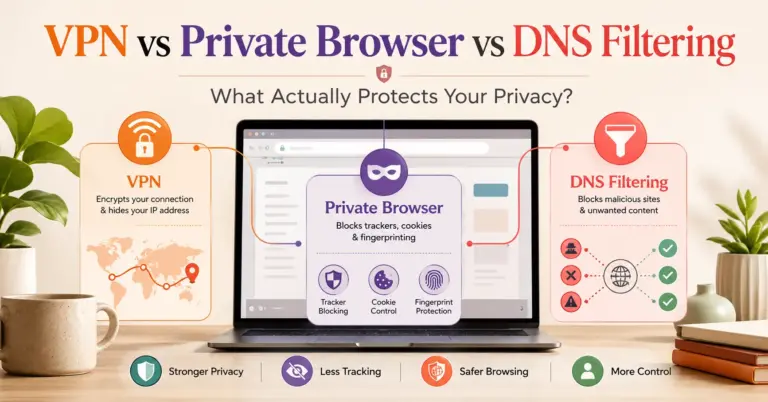
A VPN can hide your real IP address from websites and route your traffic through another server. That helps reduce IP-based tracking and can protect browsing activity from some network observers. But a VPN does not automatically change your browser fingerprint.
If your browser still exposes the same screen size, fonts, extensions, time zone, WebGL behavior, language settings, and device signals, a fingerprinting script may still recognize you. This is why someone can use a VPN and still be trackable.
A practical example: you connect to a VPN server in Germany, but your browser language is English, your time zone is Asia/Karachi, your screen size is uncommon, your font list is distinctive, and your GPU rendering behavior matches previous visits. The VPN changed one major signal, but many browser-level signals stayed the same.
That doesn’t make VPNs useless. It means VPNs solve one part of the privacy problem. For better protection, pair a reputable VPN with a privacy browser, tracker blocking, careful extension use, and consistent browser settings.
Can Private Browsing Stop Browser Fingerprinting?
Private browsing mainly limits what is stored locally after the session. It can prevent browsing history, cookies, and temporary site data from persisting in the usual way. But private browsing does not automatically make your browser anonymous.
A private window may still reveal many fingerprintable details. The website can still see your IP address unless you use a VPN, Tor, or similar routing protection. It can still query browser APIs unless the browser restricts them. It can still receive headers and observe device behavior.
That said, some browsers add stronger protections in private modes. Firefox has introduced fingerprinting defenses in Private Browsing and stricter tracking protection modes, while balancing privacy with website compatibility. Mozilla explains that aggressive blocking can break legitimate features, so its approach focuses on reducing the most revealing fingerprinting vectors while preserving normal site functionality. (blog.mozilla.org)
Privacy Browsers and Anti-Fingerprinting Protection
The best anti-fingerprinting browser is not simply the one that blocks the most. The best option depends on the user’s threat model.
A journalist, activist, or high-risk user may need Tor Browser. A regular user who wants stronger daily privacy may prefer Brave or Firefox with stricter settings. A developer testing compatibility may need multiple browsers. A business user may need privacy controls that don’t break dashboards, conferencing tools, or enterprise software.
Firefox
Firefox offers Enhanced Tracking Protection and additional anti-fingerprinting features. Mozilla has developed defenses that limit access to common fingerprinting surfaces such as graphics behavior, fonts, hardware details, and screen-related information. Mozilla also notes the compatibility trade-off: some information is needed for legitimate web functionality. (blog.mozilla.org)
Firefox also exposes advanced privacy controls, including Resist Fingerprinting settings, though Mozilla support warns that such settings can cause some websites to malfunction. (Mozilla Support)
Brave
Brave uses fingerprinting protections that include blocking, removing, modifying, or randomizing API outputs. Its documentation explains two broad approaches: making browser instances look more similar and randomizing values to reduce cross-session and cross-site linking. (GitHub)
This randomization approach is important. Instead of only trying to make everyone look identical, Brave may make a browser appear slightly different to different sites, reducing the usefulness of a stable fingerprint.
Tor Browser
Tor Browser takes a stronger anonymity-focused approach. It attempts to make users look more alike, routes traffic through the Tor network, and includes protections such as letterboxing, canvas extraction controls, NoScript integration, and first-party isolation. (Support)
Tor is powerful, but it has trade-offs. Some sites block Tor traffic. Some pages load more slowly. Certain web apps may break. For high-risk privacy, those trade-offs may be acceptable. For everyday banking, work dashboards, or streaming, they may not be practical.
Safari
Safari and WebKit include tracking prevention technologies, including Intelligent Tracking Prevention and anti-fingerprinting measures. WebKit’s tracking prevention documentation describes several privacy protections, such as partitioned storage, tracking prevention, and anti-fingerprinting approaches. (WebKit)
Safari is a strong default option for many Apple users, but users should still understand that no mainstream browser can fully eliminate fingerprinting while keeping the modern web fully functional.
Practical Ways to Reduce Browser Fingerprinting
You cannot perfectly erase your browser fingerprint without severe usability sacrifices. But you can reduce linkability and make tracking harder.
1. Use a privacy-focused browser
Choose a browser with built-in tracking and fingerprinting protections. Firefox, Brave, Safari, and Tor Browser all offer different levels of protection. The right choice depends on your risk level and tolerance for broken sites.
For most users, Brave or Firefox with stricter privacy settings is a practical starting point. For stronger anonymity, Tor Browser is more appropriate.
2. Limit browser extensions
Extensions can make you more unique. Two users may both use Chrome, but one has five unusual extensions that change headers, inject scripts, or alter page behavior. That can create a more distinctive fingerprint.
Use fewer extensions, install only trusted ones, and avoid stacking multiple privacy extensions that overlap. Ironically, too many privacy tools can make your browser stand out.
3. Avoid unusual custom settings
Changing every browser setting manually may feel private, but it can make you easier to identify if few other people use the same configuration. Anti-fingerprinting often works best when many users share similar defaults.
That’s why Tor Browser discourages heavy customization. The more you customize, the more you may separate yourself from the crowd.
4. Keep your browser updated
Browser vendors regularly patch privacy and security issues. Updates can reduce exposed fingerprinting surfaces, fix leaks, and improve tracker blocking. Old browsers can be easier to fingerprint because their quirks are well known.
5. Use tracker blocking
Tracker blockers can stop known fingerprinting scripts from loading. This does not solve passive fingerprinting or first-party fingerprinting, but it reduces exposure to many third-party trackers.
6. Pair VPNs with browser privacy controls
A VPN hides your IP address from visited sites, but it does not hide browser APIs. Use it alongside anti-fingerprinting browser features, not as a replacement for them.
7. Separate browsing contexts
Use different browsers or browser profiles for different activities. For example, use one browser for personal accounts, another for research, and a privacy-focused browser for sensitive browsing.
This reduces cross-context linking. It won’t make you anonymous, but it can limit how much data one profile accumulates.
8. Be careful with account logins
If you log into the same account, fingerprinting becomes less relevant. The site already knows who you are. Privacy protection matters most when you want to avoid cross-site tracking, profiling, or silent recognition outside logged-in contexts.
9. Test your browser
Tools like EFF’s Cover Your Tracks can help you understand how trackable your browser may appear. These tests are educational, not perfect guarantees. Still, they are useful for learning which signals your browser exposes. (Cover Your Tracks)
Developer Guidance: How to Avoid Building Invasive Tracking
Developers play a major role in whether the web becomes more private or more invasive. If you build websites, analytics systems, ad integrations, fraud checks, or SaaS dashboards, you should treat fingerprinting as a high-risk data practice.
Use data minimization
Collect only what you actually need. If you need bot protection, don’t collect a persistent fingerprint for advertising. If you need analytics, don’t gather hardware-level signals unless there is a clear, necessary reason.
Separate security from marketing
Fraud detection and ad personalization should not casually share identifiers. A signal collected for account security should not become a retargeting ID.
Make consent meaningful
In many jurisdictions, device fingerprinting and similar storage/access technologies can trigger privacy and consent obligations. The ICO says PECR applies where fingerprinting stores information or accesses information stored on a device. (ICO)
The EDPB’s Guidelines 2/2023 address how Article 5(3) of the ePrivacy Directive applies to technical operations involving access to or storage of information on user devices. (European Data Protection Board)
Avoid dark patterns
Do not bury fingerprinting behind vague labels like “improve experience” or “site optimization” if the real purpose is cross-site tracking or ad targeting. Users should understand what is happening.
Audit third-party scripts
Many site owners do not fully know what their ad, analytics, chat, heatmap, or fraud vendors collect. Review vendor documentation, network requests, script behavior, and data processing terms.
Build graceful degradation
If a user blocks fingerprinting scripts, the website should still work where possible. Privacy-respecting design should not punish users for protecting themselves.
Common Mistakes Users Make
Mistake 1: Thinking cookie rejection stops all tracking
Rejecting cookies helps, but it does not block every form of online tracking. Fingerprinting, link decoration, pixels, server logs, and account-based tracking may still exist.
Mistake 2: Assuming a VPN makes them anonymous
A VPN changes your network identity, not your full browser identity. Your browser may still reveal enough information to be recognized.
Mistake 3: Installing too many privacy extensions
More tools do not always mean more privacy. A strange combination of extensions can make your setup more unique.
Mistake 4: Logging into personal accounts during “private” research
If you log into Google, Facebook, Amazon, or another major account, your session is no longer meaningfully anonymous to that service.
Mistake 5: Ignoring mobile browsers
Mobile devices can also be fingerprinted. Screen dimensions, OS version, browser version, device class, sensors, and app/browser behavior may contribute to identification.
Troubleshooting: Why You’re Still Trackable
| Problem | Likely Cause | What to Do |
|---|---|---|
| You cleared cookies but a site remembers you | Fingerprinting, account login, local storage, or server-side profile | Clear site data, use a different browser profile, check login state |
| VPN is on but ads still follow you | Browser fingerprint, logged-in accounts, ad IDs, remarketing lists | Use tracker blocking and separate browsing contexts |
| Private mode doesn’t help | Private mode mainly limits local storage persistence | Use a privacy browser or stricter settings |
| Privacy extensions break websites | Blocking scripts or APIs needed for functionality | Disable per site or use browser-native protections |
| Fingerprint test says browser is unique | Unusual settings, extensions, hardware, or browser combination | Use common defaults in privacy-focused browsers |
| Work sites stop functioning | Anti-fingerprinting blocks required APIs | Use a separate work profile/browser |
Summary Table: Cookies vs Browser Fingerprinting
| Feature | Cookies | Browser Fingerprinting |
|---|---|---|
| Stores data on device | Usually yes | Not always |
| Easy to delete | Often yes | Usually no |
| Visible in browser settings | Often yes | Less visible |
| Needs JavaScript | Not always | Often, for active fingerprinting |
| Can track across sites | Yes, especially third-party cookies | Yes, depending on implementation |
| Blocked by cookie rejection | Often | Not necessarily |
| Used for login/session | Commonly | Usually not primary purpose |
| Used for fraud detection | Sometimes | Common in risk systems |
| User control | Better understood | Harder to understand and manage |
Final Takeaway
Browser fingerprinting matters because it shifts tracking away from something users can see and delete toward something built from the way their browser naturally behaves. Cookies are still important, but they are no longer the whole privacy story.
A VPN can help with IP privacy. A privacy browser can reduce exposed signals. Tracker blockers can stop known scripts. Better developer practices can reduce abuse. But no single tool solves everything.
The realistic goal is not perfect invisibility. It is reducing unnecessary tracking, limiting cross-site profiling, and choosing tools and websites that respect user control.
9. FAQ Section
1. What is browser fingerprinting in simple terms?
Browser fingerprinting is a tracking method that identifies your browser by combining technical details like screen size, fonts, browser version, time zone, graphics behavior, and language settings.
2. Is browser fingerprinting the same as cookies?
No. Cookies usually store data in your browser. Browser fingerprinting can identify you by collecting browser and device signals, even when cookies are blocked or deleted.
3. Can a VPN stop browser fingerprinting?
A VPN can hide your IP address, but it does not automatically hide your browser fingerprint. Your browser may still reveal screen size, fonts, language, time zone, and other identifying signals.
4. Does private browsing prevent fingerprinting?
Not completely. Private browsing reduces local storage and history, but websites may still collect fingerprintable browser details unless the browser adds stronger protections.
5. What is an anti-fingerprinting browser?
An anti-fingerprinting browser reduces or changes the information websites can collect about your browser. Firefox, Brave, Safari, and Tor Browser all include different anti-tracking or anti-fingerprinting protections.
6. Is browser fingerprinting legal?
It depends on the purpose, jurisdiction, consent, transparency, and data protection rules. Regulators such as the ICO and EDPB treat device access and fingerprinting as privacy-sensitive practices, especially when used for tracking or advertising. (ICO)
7. Why do websites use fingerprinting?
Websites and vendors may use fingerprinting for ad tracking, fraud detection, bot prevention, analytics, security checks, or personalization. The same method can be used for legitimate security or invasive tracking.
8. Can I completely block browser fingerprinting?
Complete blocking is difficult without breaking many websites. The better goal is to reduce fingerprinting through privacy-focused browsers, fewer extensions, tracker blocking, VPN use, and separate browser profiles.
9. Does disabling JavaScript stop fingerprinting?
It can reduce active fingerprinting, but it also breaks many modern websites. Passive fingerprinting may still occur through headers, IP address, and network-level signals.
10. Which browser is best for fingerprinting protection?
Tor Browser is strongest for anonymity, but it has usability trade-offs. Brave and Firefox are practical daily options with strong privacy controls. Safari also includes tracking prevention for Apple users.
10. Conclusion
Browser fingerprinting is one of the most important privacy risks because it works beyond the cookie banner. It can recognize users through ordinary browser and device signals, making it harder to see, delete, or control.
For users, the best defense is layered: use a privacy-focused browser, reduce extensions, keep settings consistent, avoid unnecessary logins, use a VPN for IP privacy, and test your browser occasionally. For developers and publishers, the better path is privacy-by-design: collect less, explain clearly, separate security from advertising, and avoid turning every browser signal into a tracking identifier.
The web does not need to choose between functionality and privacy. But it does need better defaults, better disclosure, and less dependence on hidden tracking.